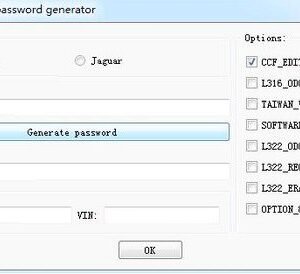

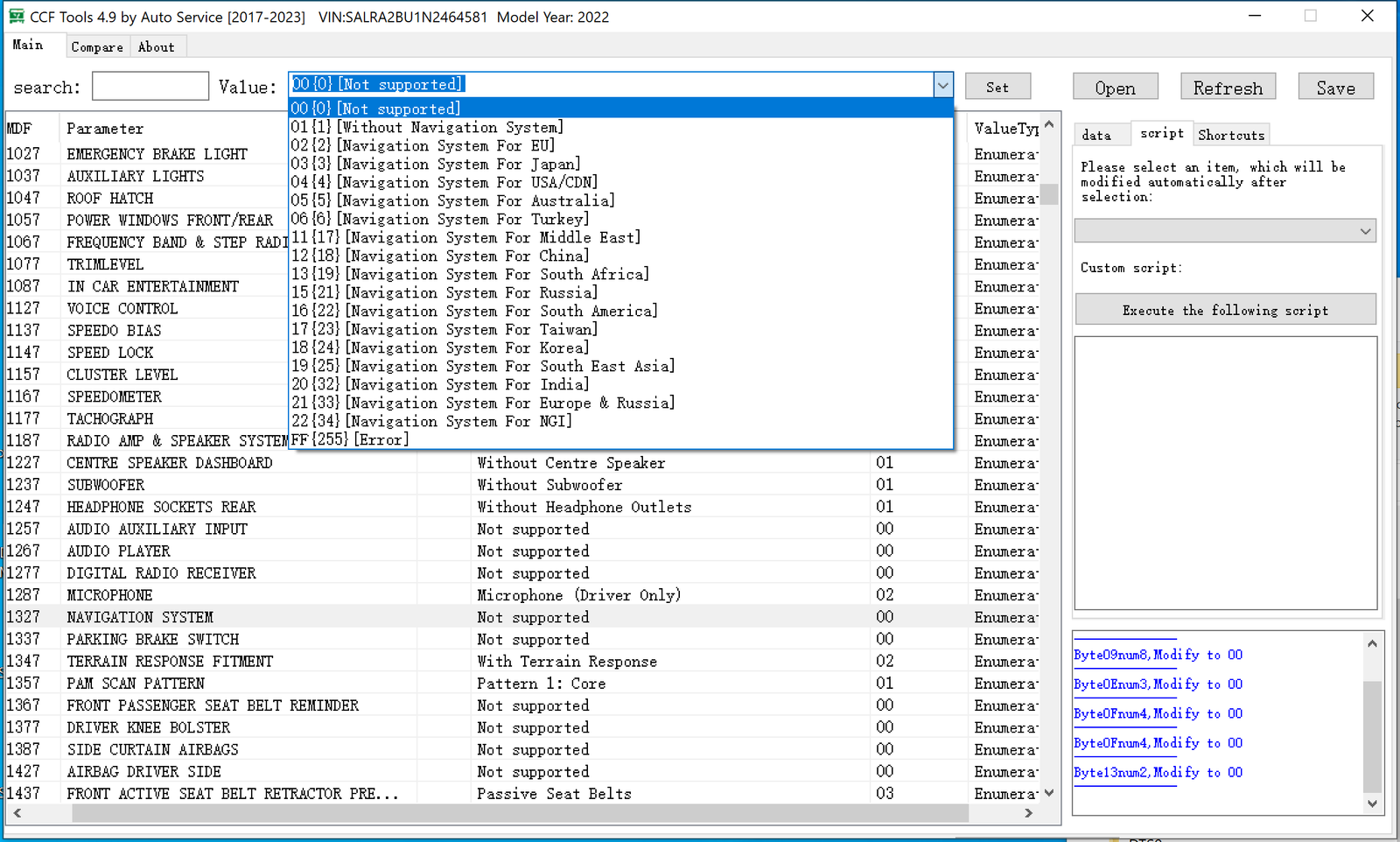
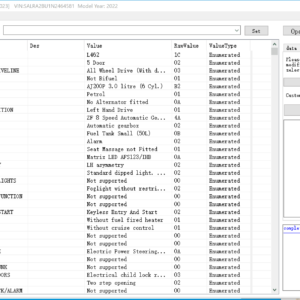
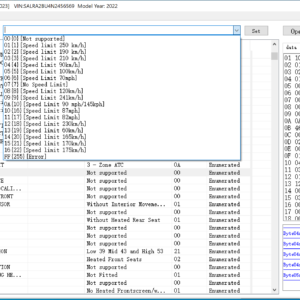
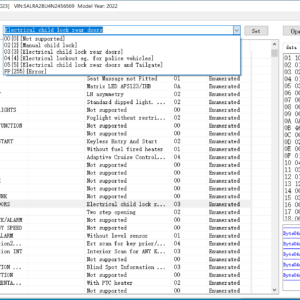
New JLR CCF Tools 4.9 CCF Editor for JLR 2017-2023
$179.00
New JLR CCF Tools 4.9 CCF
Editor, JLR VBF Editor for JLR 2017 – 2023
n
-
n
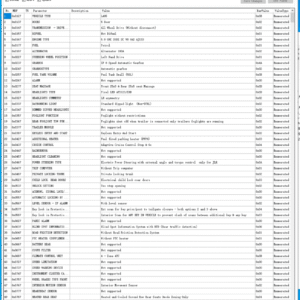
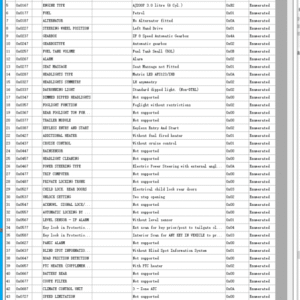
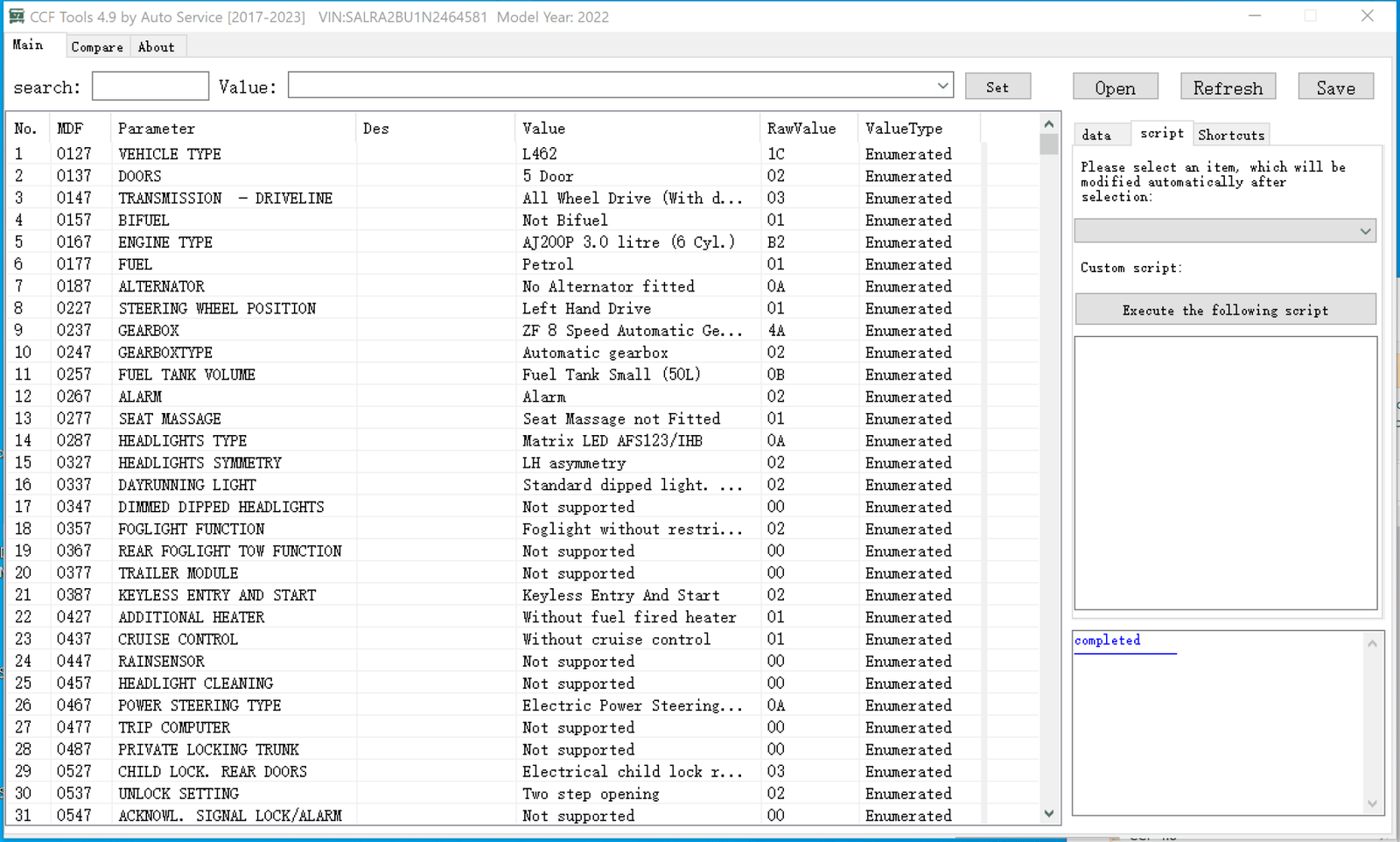
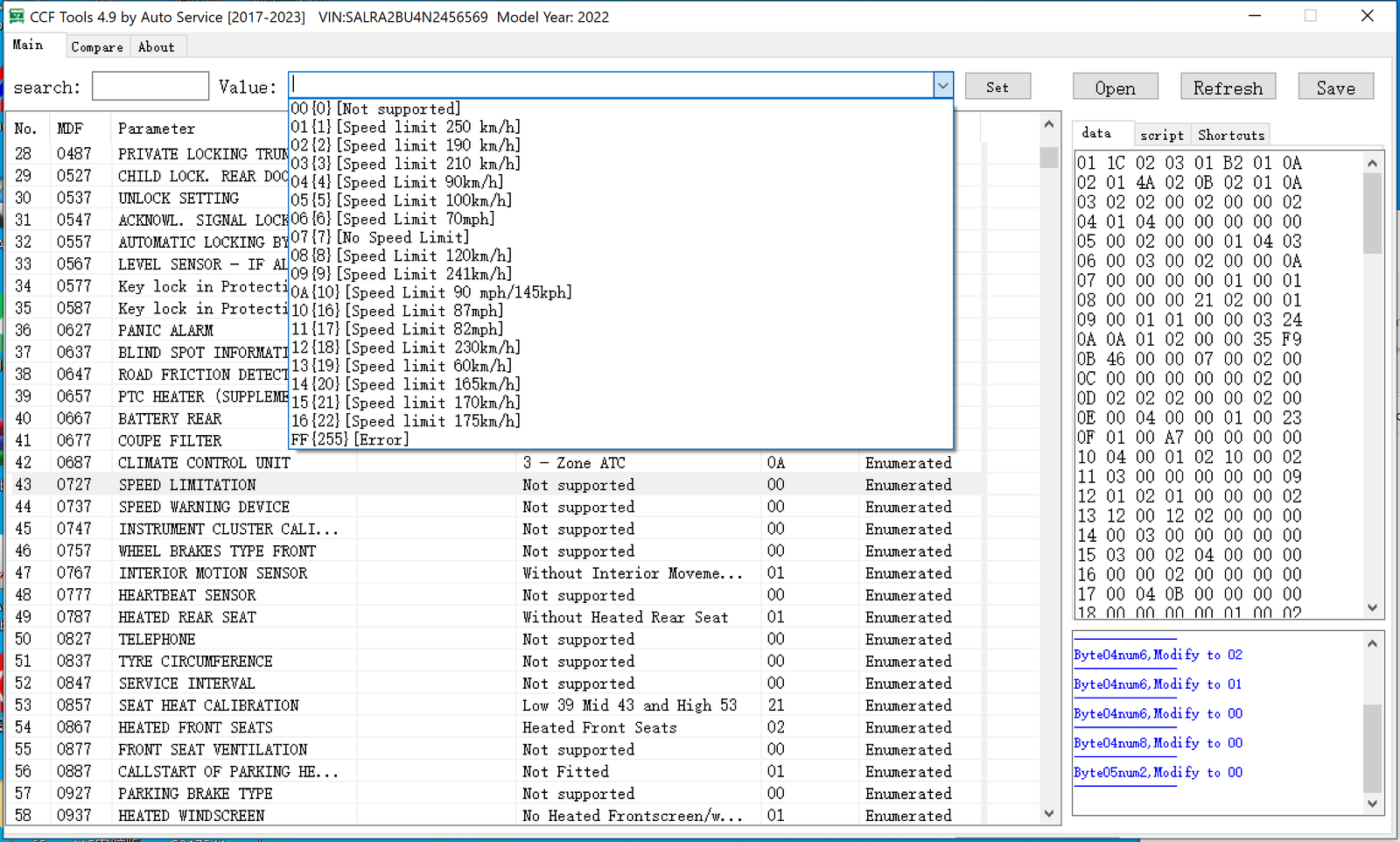
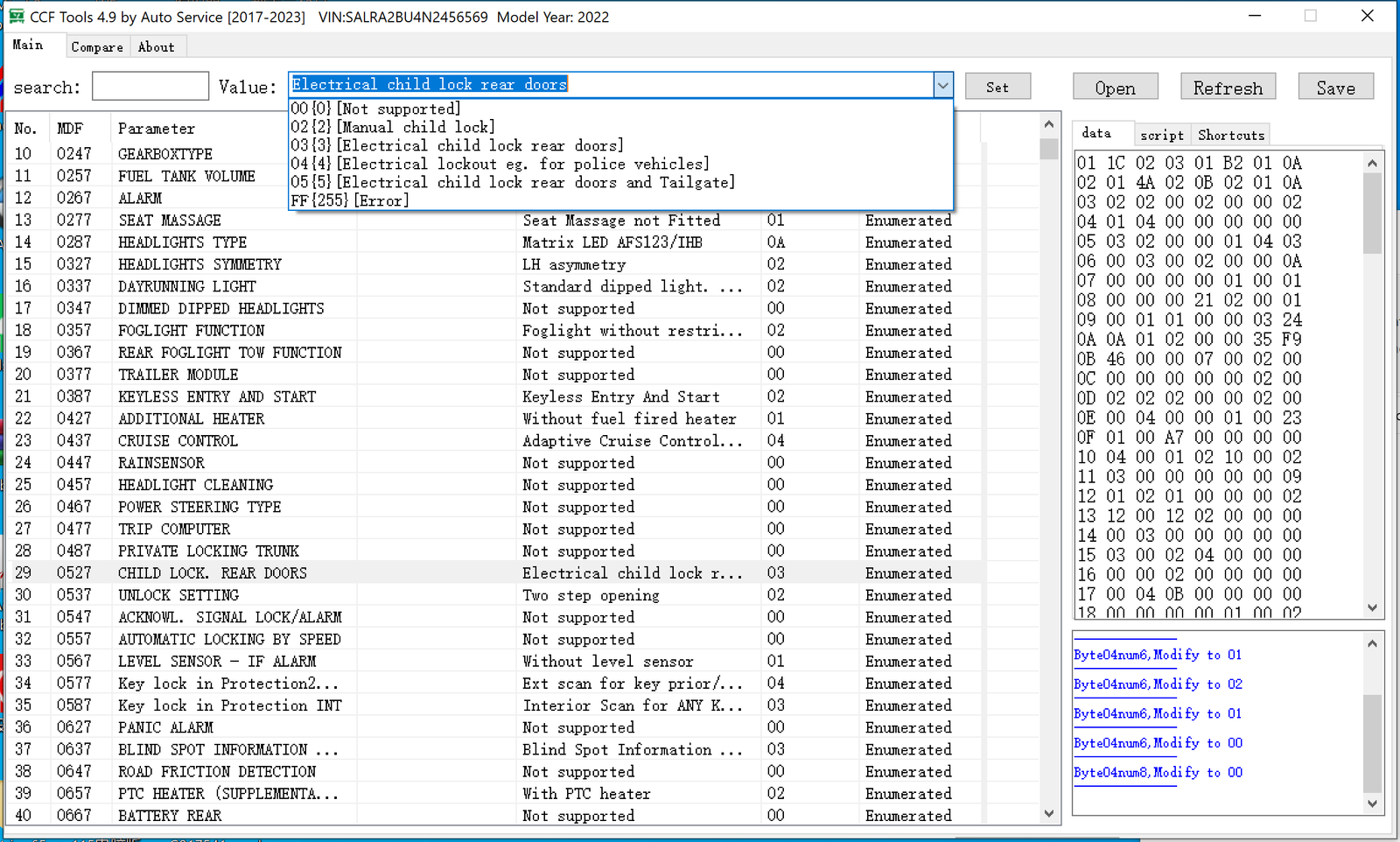
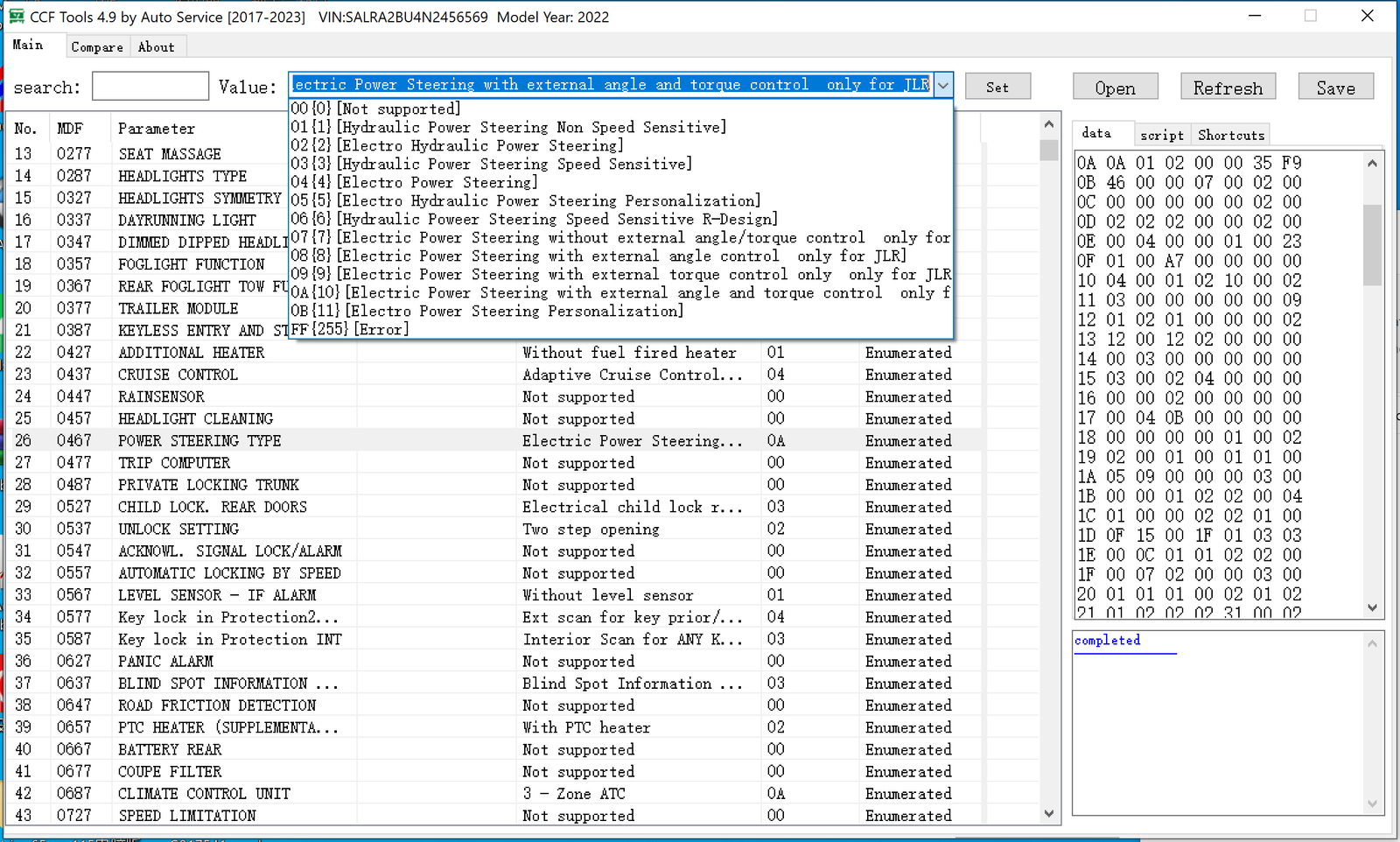
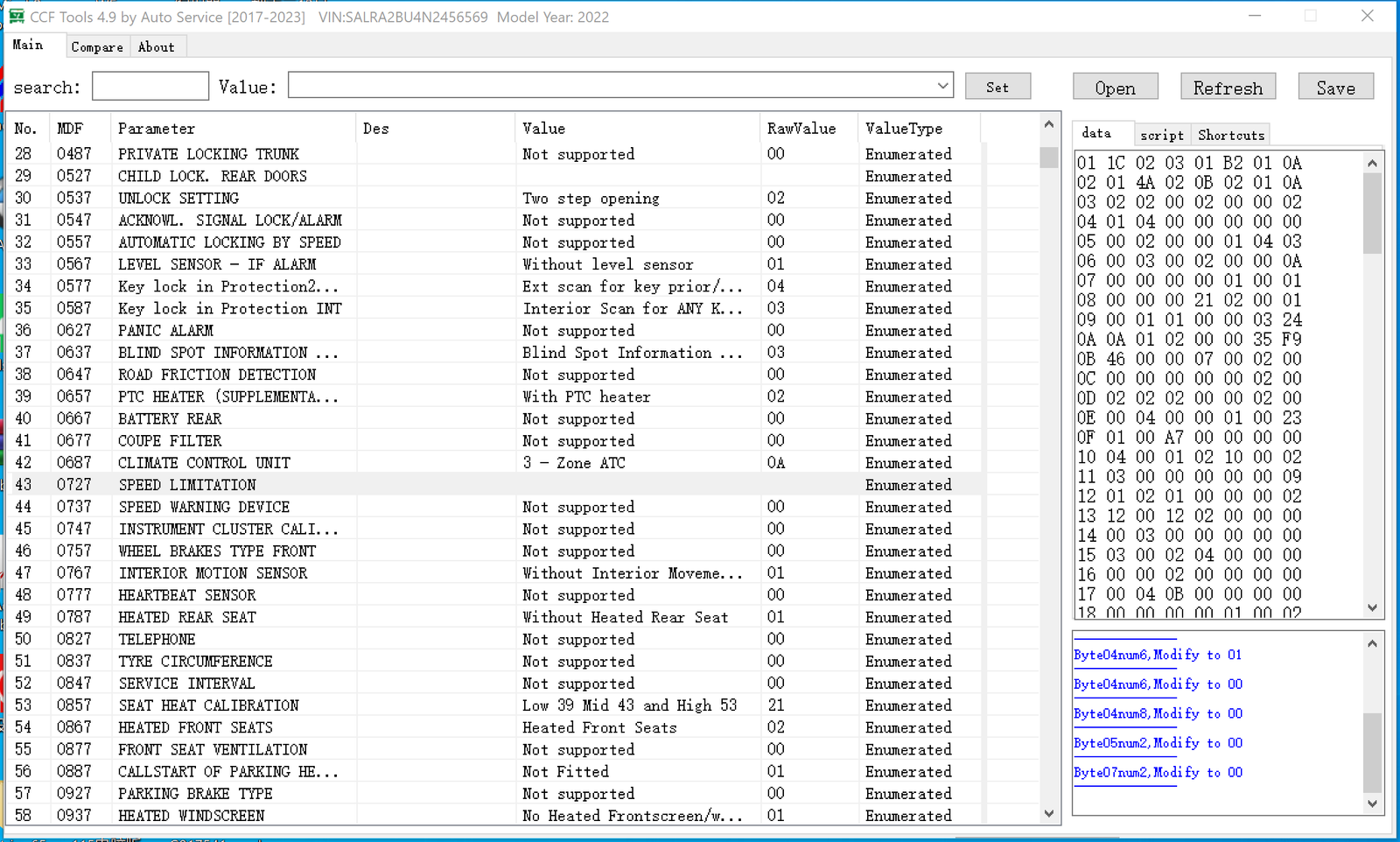
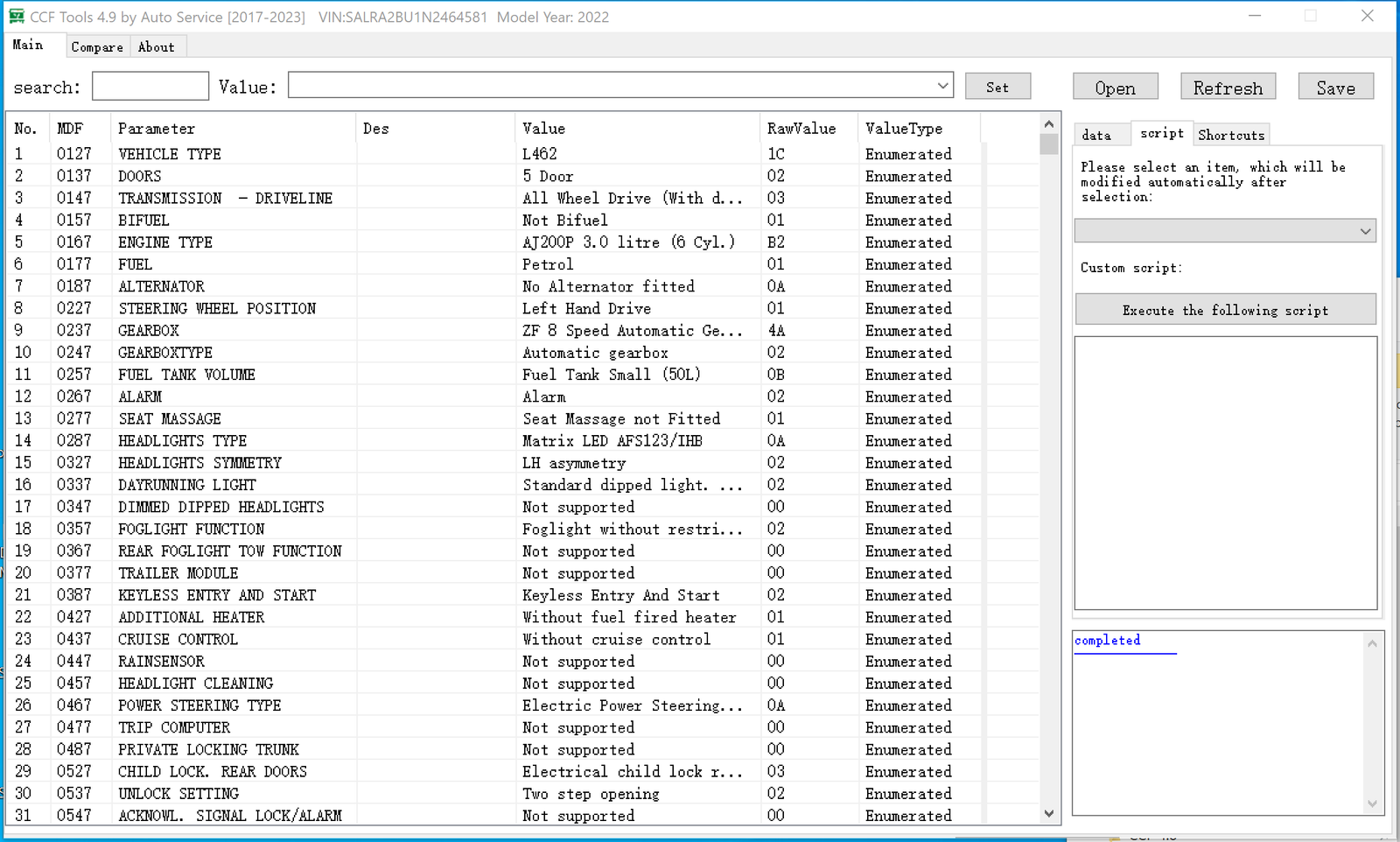
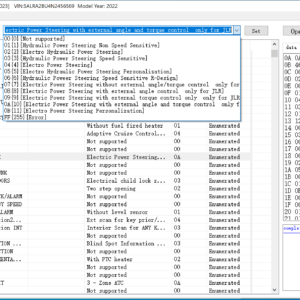
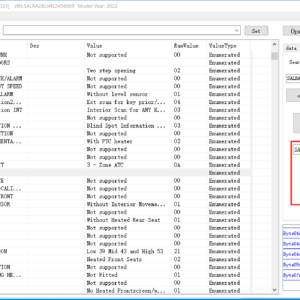
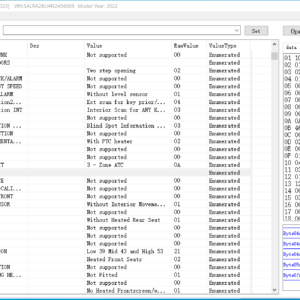
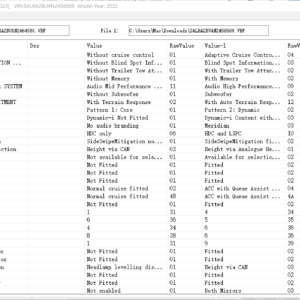
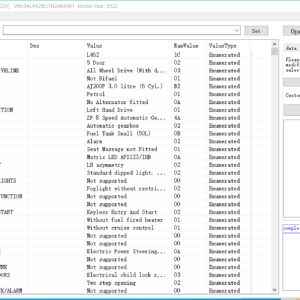
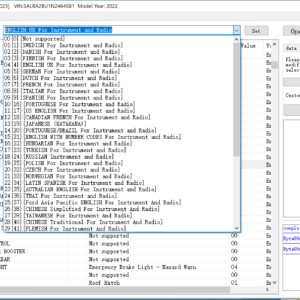
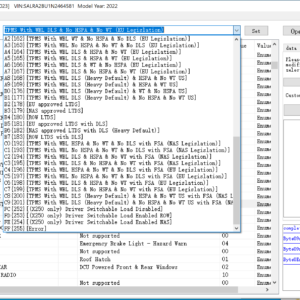
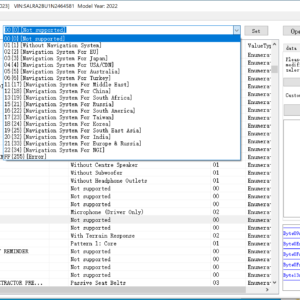
- Read VBF, search by keyword
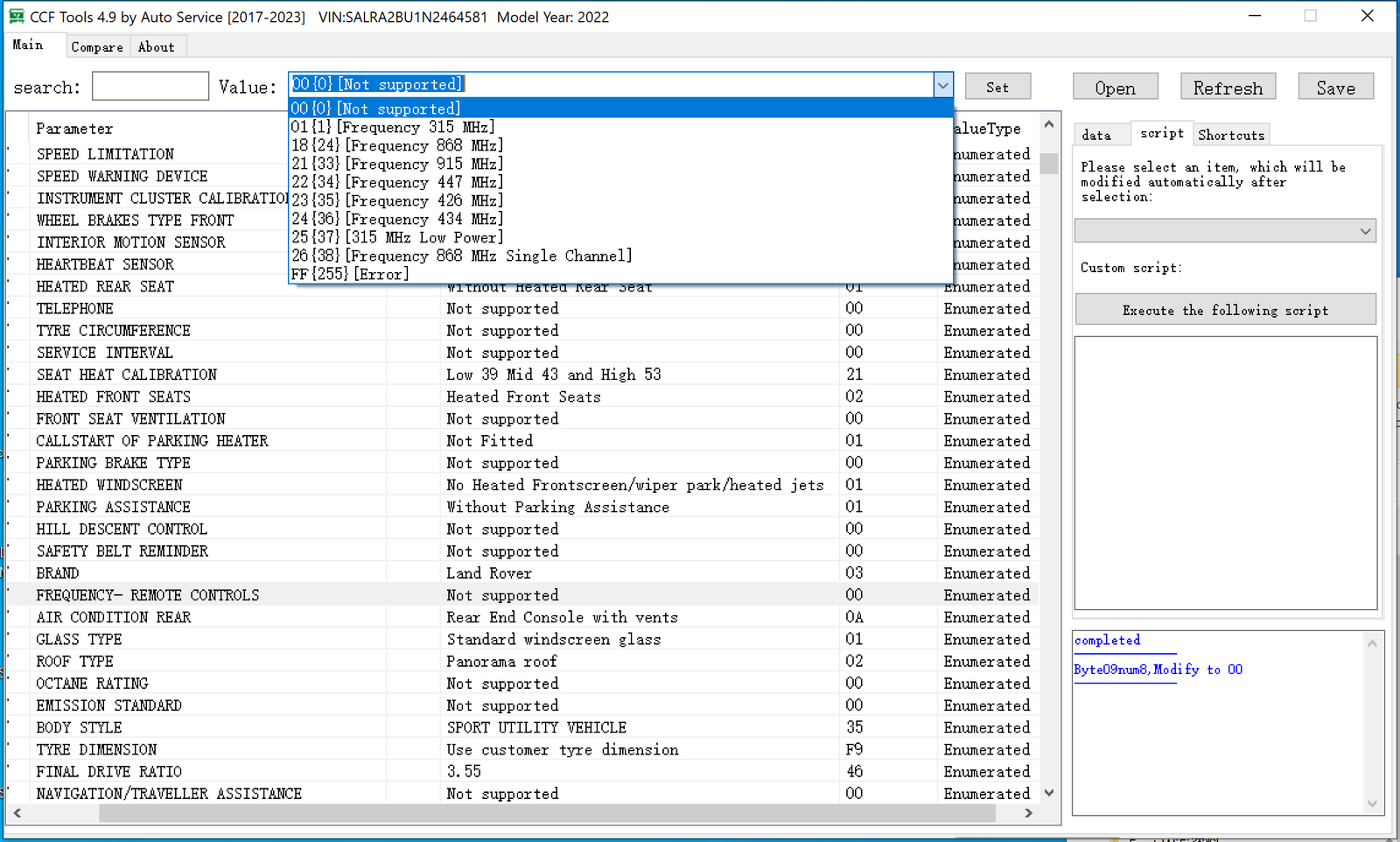
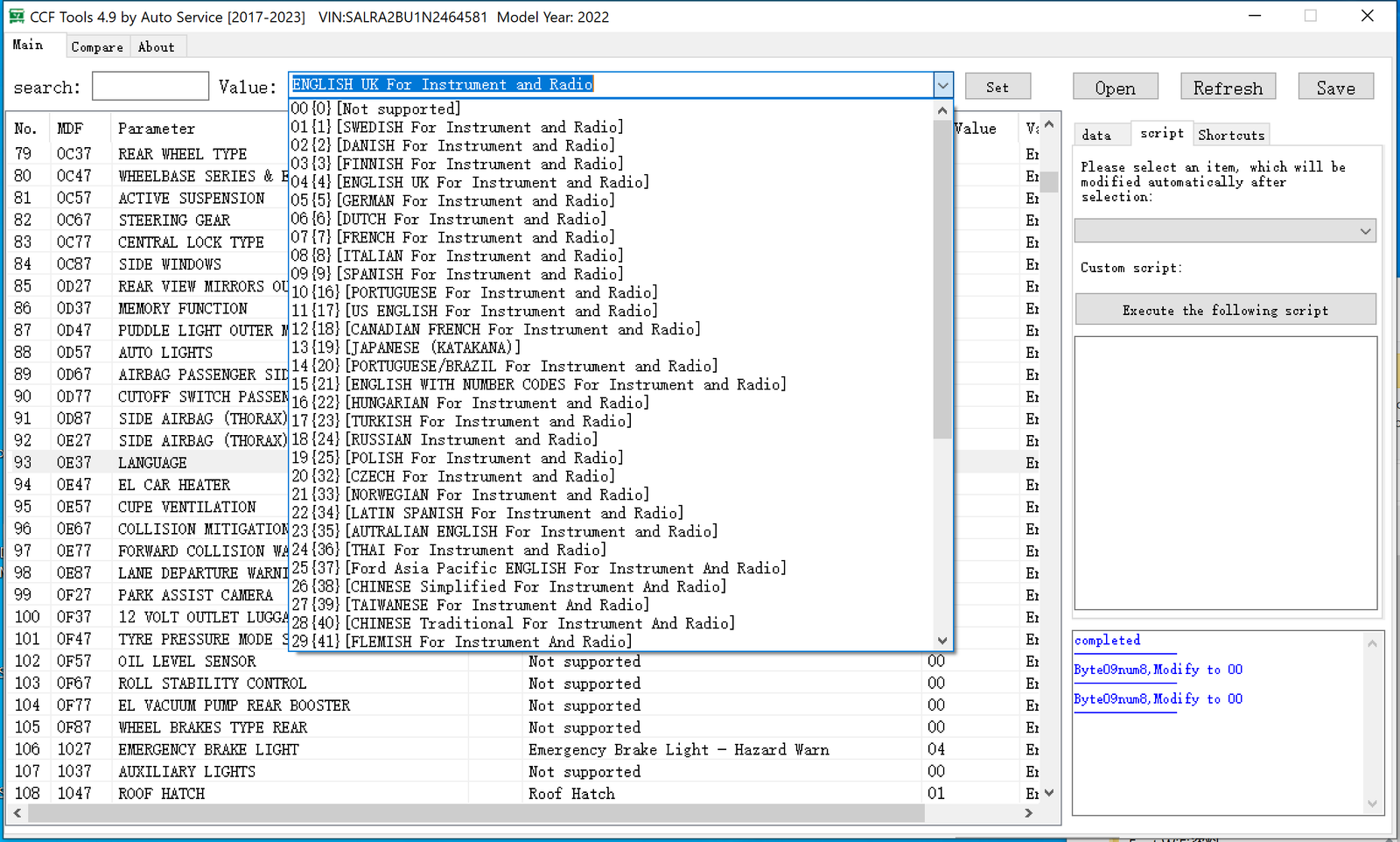
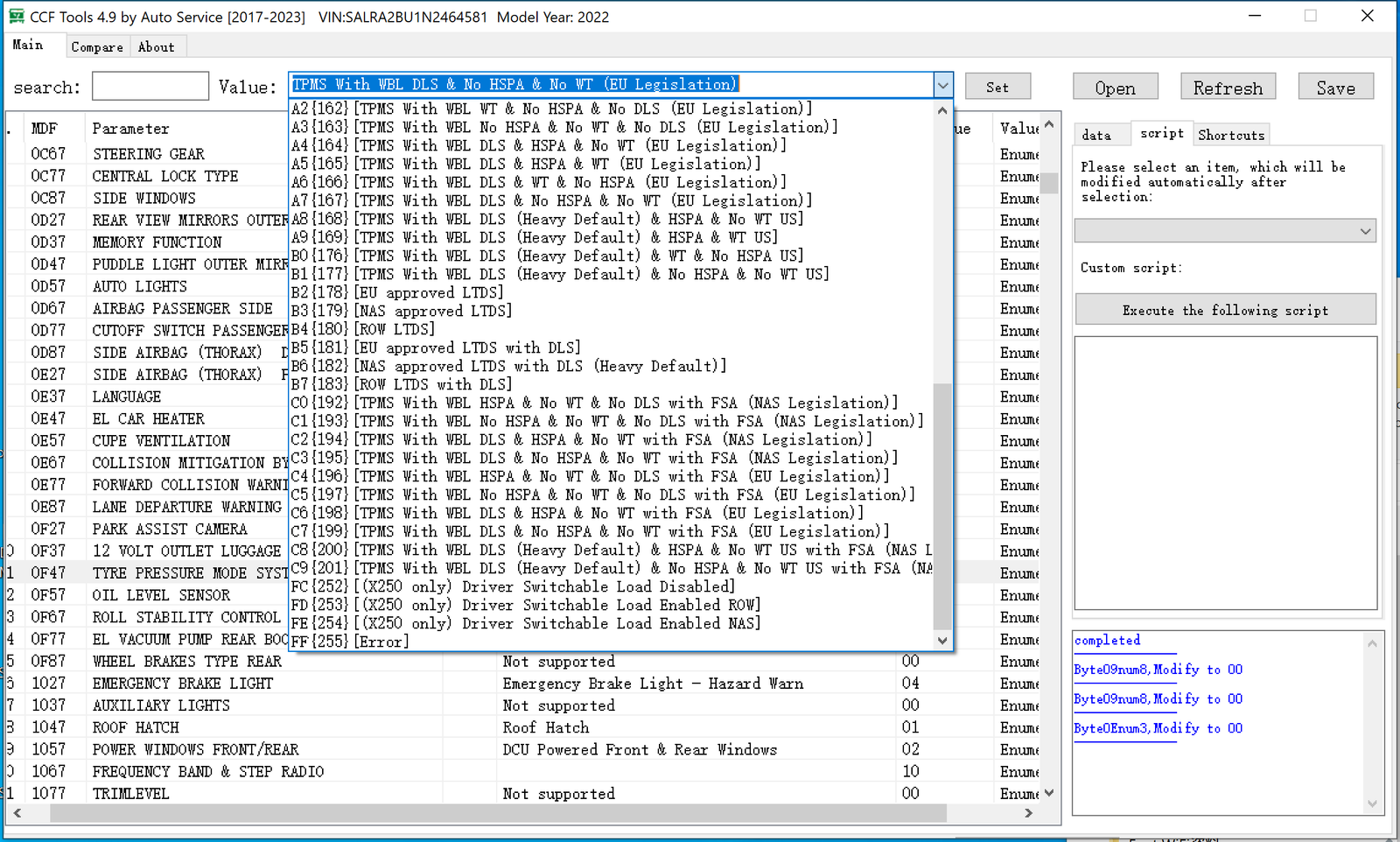
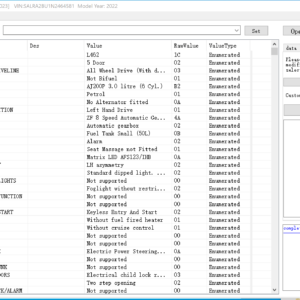
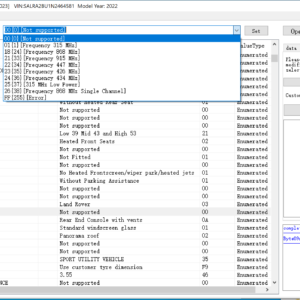
- Parameters set and save
- EEPROM data
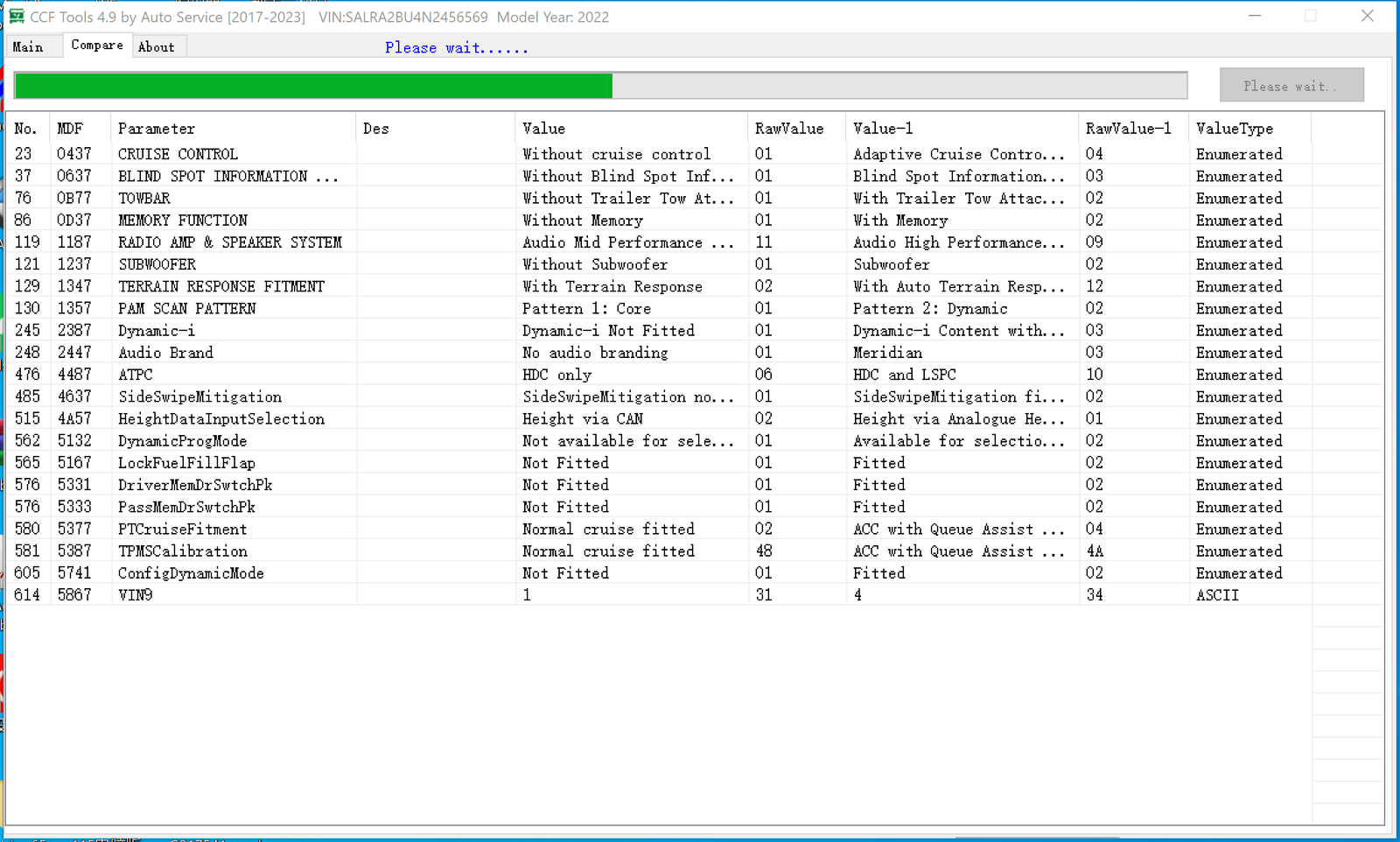
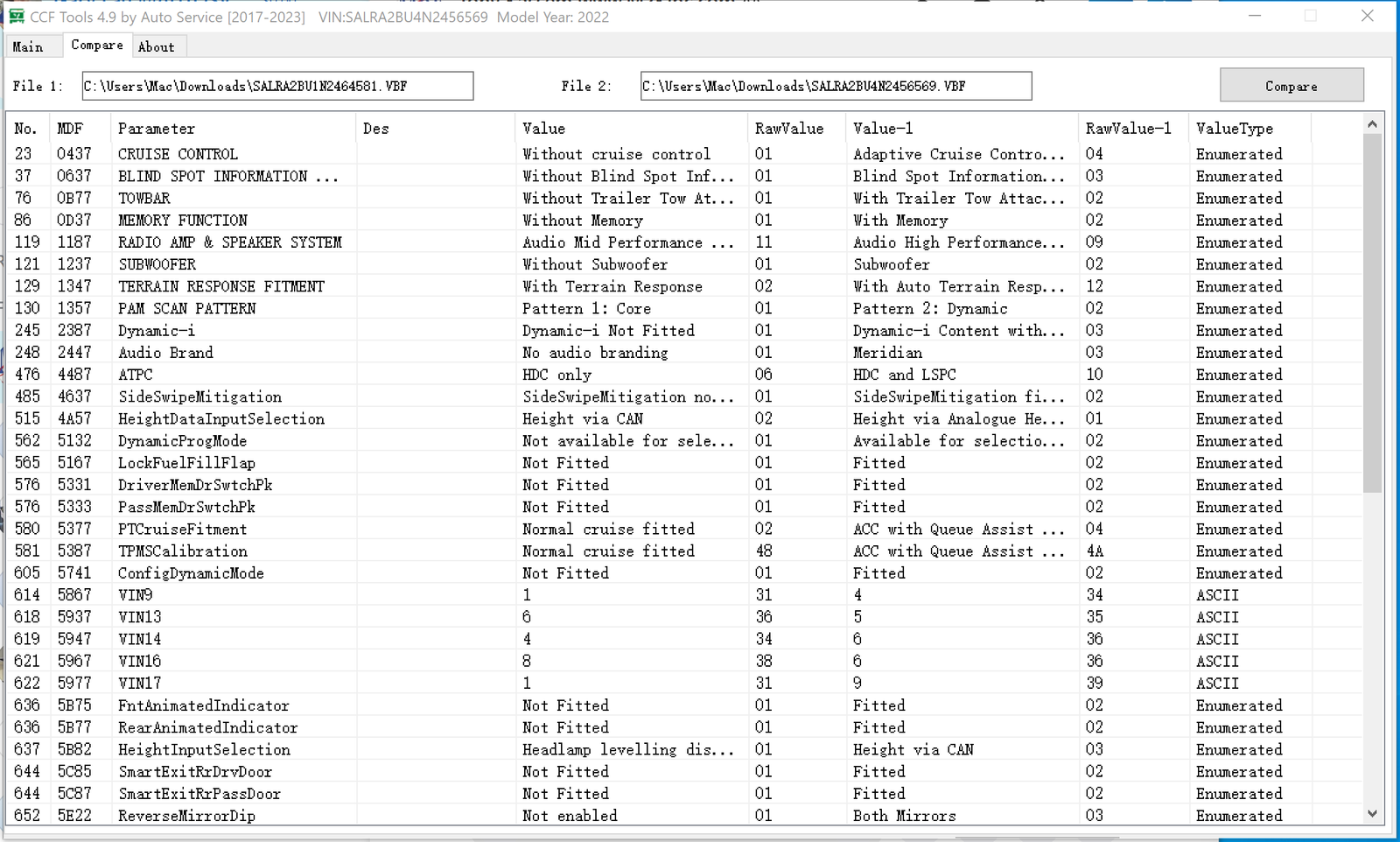
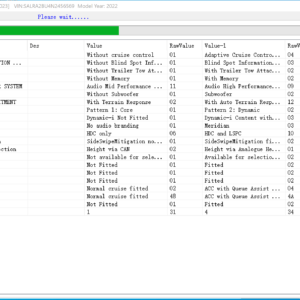
- Compare VBF files
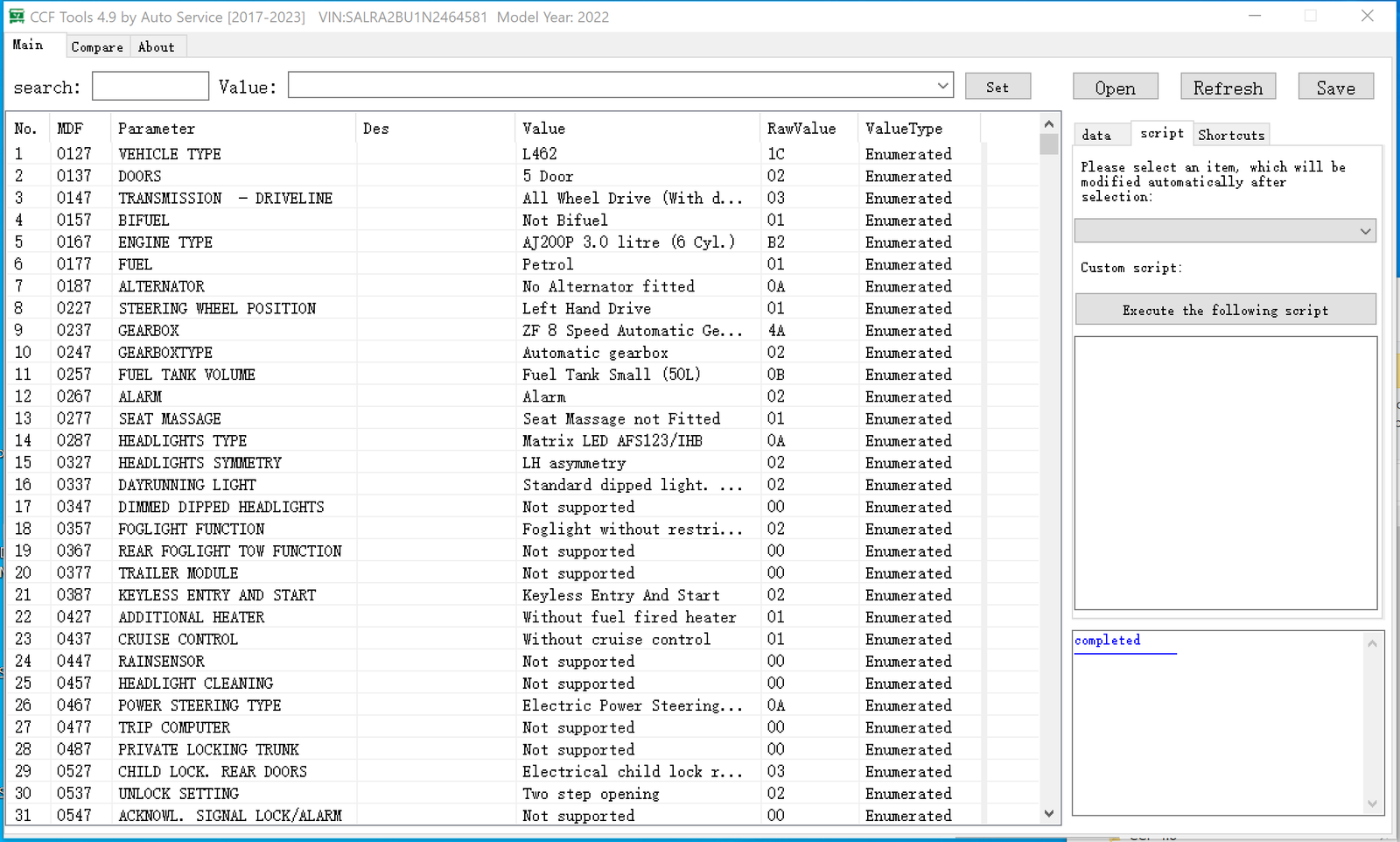
- Self-made click-and-play coding scripts
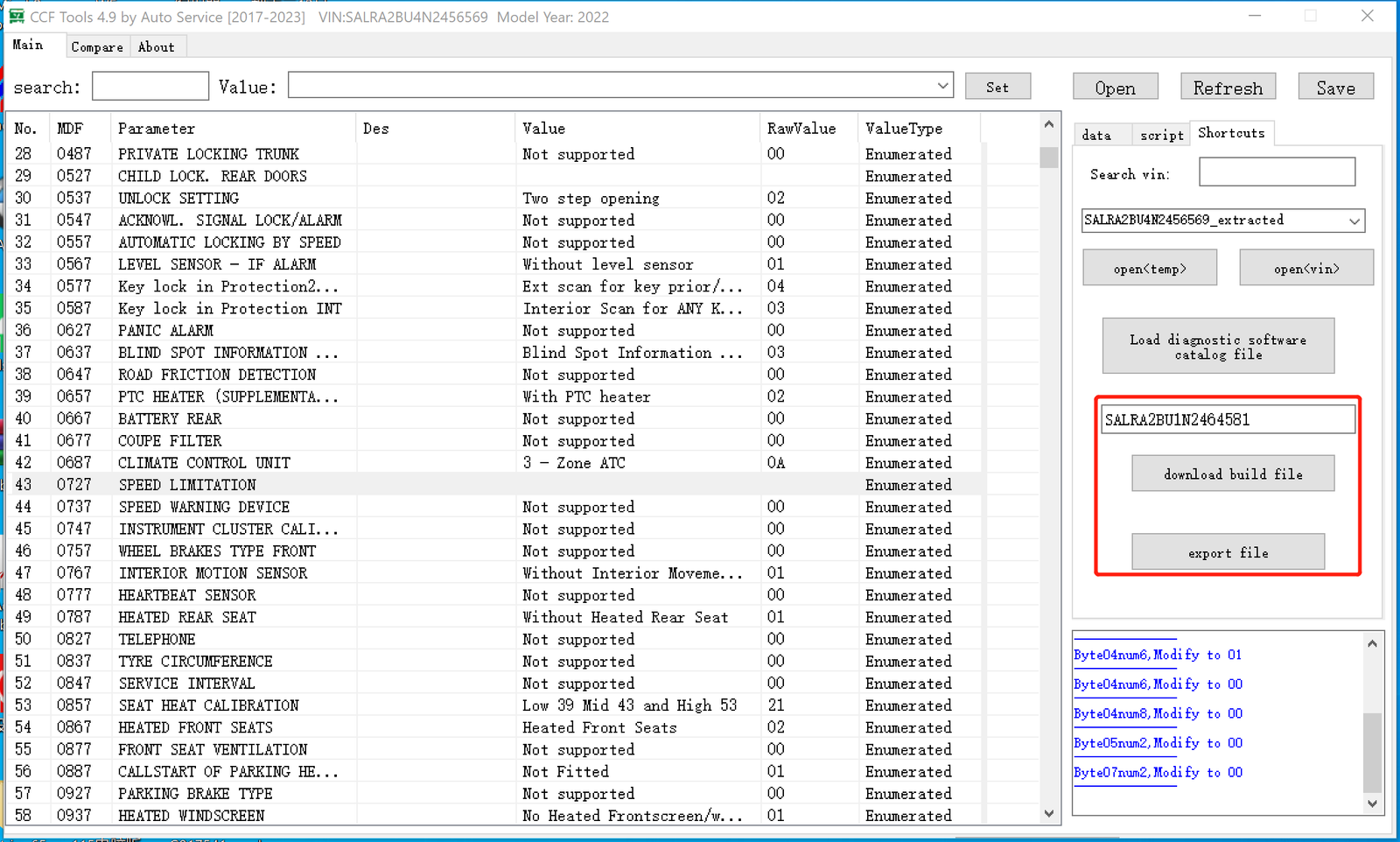
- VBF download and export by VIN
n
n
n
n
n
n
n
n
n
n
n
n
n
New JLR CCF Tools
4.9 CCF Editor, JLR VBF Editor for JLR 2017 – 2023 Registration for One
System
n
file by VIN number in as-built and as-is configuration files for all SDD and
Pathfinder models. Then, depending on the model, complete editing of the car
configuration files for all Jaguar Land Rover vehicles built between 2017 and
2023, up to the present day, and all vehicles that use either SDD or Pathfinder
software.
n
n

n
n
conjunction with either SDD or Pathfinder software to edit the CCF file,
which can then be uploaded to the DFSM server or directly to the vehicle
using SDD or Pathfinder. For SDD and Pathfinder, there is a copy-to option
that allows the downloaded and edited files to be copied to the appropriate
directories;
n
Pathfinder download them. SOAP encrypted *VBF files, which appear from time
to time from JLR, are supported by the application.
n
n
the DFSM server, or a local CCF file can be loaded, edited, and saved back to
the original opened file or saved to a new file. There is an easy-find
feature that allows for a quick search of parameters and parameter
descriptions, as well as reload to undo all changes.
n
JLR CCF Tools 4.9 Support
n
-
n
- Land Rover L319, L320, L322, L358, L359, L361, L371, L392,
L405, L460, L461, L462, L465, L494, L538, L550, L551, L552, L560, L561, L571,
L575, L591, L663,L664,L860, L663,L664,L860 - Jaguar X150, X151, X152, X161, X162, X250, X260, X262, X270,
X351, X391, X393, X540, X572, X574, X590, X760, X761, X762, X763, X770, X760,
X761, X762, X763, X770
n
n
n
Pathfinder.
n
n
saved and transported. Some VBF files use a specific type of encryption, and
the CCF is stored in a variety of formats.
n
n
well as the user license key.
n
New CCF Tools 4.9 Features
n
-
n
- Read VBF, search by keyword
- Parameters set and save
- EEPROM data
- Compare VBF files
- Self-made click-and-play coding scripts
- VBF download and export by VIN
- The CCF Tools 4.9 is only licensed for use on one machine.
n
n
n
n
n
n
n
n
n
n
n
n
n
n
n
n
n
n
n
n
n
n
n
n
n
n
n
n
n
n
n
n
n
n
n
n
-
n
- Coding Scripts
n
n
n
How to register the CCF TOOLS 4.9?
n
-
n
- Download the CCF TOOLS 4.9 Installer
- The tool will be activated online, and we will send you the
registration code after payment.
n
n
n
n
Meantime you can also order the older CCF
Tools 4.6
n
-
n
- Support MY 2015 – 2019.5 Car models. L538, L550, X260, X760,
X540, L405, L494, L462
n
n
CCF
Tools 4.8
n
-
n
- Support MY 2021 – 2022 L462 L663 X260 L560 L551
n
n… Also you can get more ideas about Pathfinder and SDD
n
Pathfinder
Offline Unlock without TOPIX Land Rover Account Input
nPackage Includes 1 Pathfinder system unlock
V371 or V372 or V374 to work with offline Pathfinder on 2022 models without
TOPIX account login. In case you don’t have the Pathfinder installed, we can
provide the Pathfinder V372 and SDD V162 System image files after the order
payment. The package from this link does NOT come with installation service
remote
support. We will remotely unlock the system V371 or V372 or V374 to
work with offline Pathfinder on 2022 models without a TOPIX account login.
n
nSpecial Note: This item is NOT returnable
under any circumstance. No refunds are available under any circumstance.
n
nThe Pathfinder software 2022 It is the only
unit that will be compatible with the Pathfinder Software and all JLR
vehicles with the new vehicle architectures found in 2017 and newer vehicles
(from the Range Rover/Range Rover Sport L405/L494). In addition to the 2017
and newer vehicles, the DoIP VCI will also be capable of interfacing with
2014 through 2019 Multi-CAN architecture vehicles (see application list
below).
n
nPATHFINDER supports the following vehicles. Land Rover: Range Rover L405
(17MY) Range Rover Sport L494 (17MY) New Discovery L462 (17MY) Jaguar: F-TYPE
X152 (18MY) F-PACE X761 (18MY) XE X760 (18MY) XF X260 (18MY)
n
nThe SDD software All 2014-2018 with no DOIP
and earlier (2006 to 2014) land rover and Jaguar will still use the SDD JLR
software.
n
n14-16MY Vehicles with DOIP VCI support
n
-
n
- XE (X760)
- F-Pace (X761)
- F-Type (X152)
- XF (X260)
- XJ (X351) – 16MY only
- Evoque (L538)
- Discovery Sport (L550)
- Range Rover (L405)
- Range Rover Sport (L494)
n
n
n
n
n
n
n
n
n
nPre-14MY and vehicles not detailed above will continue to use the current
diagnostic system and VCIs. For Land Rovers from 1998-2009, fully compatible
with the T4
Product Platform. The T4 Mobile Plus System software can work
with both Windows XP and Windows 10.
n
n Frequently Asked Questions on JLR
DOIP How does the JLR VCI get updated
for future Software Updates?
n
nPeriodically JLR will release updates to its products’ drivers and
software. These updates are necessary to either release further device
functionality or resolve field issues. The updating of the drivers and
software is handled by the diagnostic test application which will install the
updates on request. If problems are experienced during device use, always
make sure that the latest device software and drivers have been installed.
n
nHow to Install the Diagnostics over Internet Protocol
(DoIP) Vehicle Communication Interface (VCI) unit? Before
Installation:
n
-
n
- PATHFINDER requires a DoIP VCI unit to communicate with the
2017 model year Range Rover L405, Range Rover Sport L494, and New Discovery
L462. - The DoIP VCI must be the only VCI connected to the JLR
Approved Diagnostic Equipment when using PATHFINDER. Future PATHFINDER
communications will appear soon in the ‘Activity Stream’ section on TOPIX.
Every retailer MUST have the DoIP VCI available in their workshop. The DoIP
VCI is the only JLR-approved VCI unit that can communicate with the 2017
model year vehicles identified earlier. - Please be aware that the following instructions are only
applicable for the first use of the VCI. Once the initial installation and
settings have been completed, the DoIP VCI is plug-and-play with the
PATHFINDER software.
n
n
n
n
-
n
- Insert the DoIP VCI USB cable into the DoIP VCI device and
the JLR Approved Diagnostic Equipment. Note: The ‘USB Input Device’ pop-up
will appear, select ‘X’ and close the pop-up. - Select the ‘Windows’ key.
- Select ‘All Programs.
- Select ‘Bosch’.
- Select ‘VCI Software (JLR)’.
- Select ‘VCI Manager (JLR)’.
- Select the VCI icon displayed on the screen.
- Select ‘Connect to VCI’
- Select ‘VCI Update’.
- Select ‘Start Update’.
- The ‘VCI Manager Information’ pop-up will appear, select ‘OK’
to continue. Note: Do not disconnect the DoIP VCI from the JLR Approved
Diagnostic Equipment during the update process. Note: The DoIP VCI update
process will take approximately 12 minutes to complete. - The DoIP VCI will now automatically restart. Wait for the
DoIP VCI to give an audible beep. Select ‘OK’ to continue. - Select ‘X’ and close the ‘VCI Manager’. The DoIP VCI is ready
for use Setting Preferences in PATHFINDER
n
n
n
n
n
n
n
n
n
n
n
n
n
nHow to Set the Preferences in PATHFINDER?
n
-
n
- Select the PATHFINDER icon on the ‘JLR Application
Launcher. - Select ‘Other User’ and enter your ‘User Identification’ and
Password details. - Select ‘Independent Operator’ or ‘Authorised
Repairer’. - Select ‘OK’ and log in.
- Read the content of the ‘Warning’ pop-up and select
‘OK’. - Select the three-bar icon in the top right of the screen.
Select the ‘Settings’ icon. - Select the ‘Communication Interface’ tab. Select
‘D-PDU’. - The ‘Windows Security Alert – Windows Firewall’ pop-up is
displayed. Note: Do not select ‘Cancel’ when the ‘Windows Security Alert’
pop-up is displayed. - In the ‘Windows Security Alert – Windows Firewall’ pop-up,
select the checkboxes for ‘Private Networks’ and ‘Public Networks’, then
select ‘Allow Access’. - The preferences have now been set in PATHFINDER. Note: Once
the initial installation and settings have been completed, the DoIP VCI is
plug-and-play with the PATHFINDER software.
n
n
n
n
n
n
n
n
n
n
n[wpforms id=”10013″]
n
n
Related products
Firmware Upgrade

Firmware Upgrade

Remote Support